Windows 8: My initial reaction


At the Build conference today, Steven Sinofosky unveiled a “developer preview” of Windows 8.  The GUI, dubbed “Metro”, reminds a lot of Windows Phone 7.  Lots of “tiles” that are just like Apple’s “apps”, but with information on the icons.  A nice twist and a real marketing edge to say “We are not copying Apple, again!” :).

Now, since it is a “developer preview”, here are my thoughts as a developer.  Apparently, they’ve taken the Win32 API’s, .Net CLR, and other OS API’s and unified them into one layer called the “Windows Runtime API’s” or WinRT for short.  The real change is allowing JavaScript to call into this Win RT.  This effectively means that JavaScript is now on a level playing field with C#, C++, and other major languages for producing Windows apps (in terms of features).  I suspect C and C++ will always have a performance edge (given that is what the Win kernel is written in).  But still, this is a MAJOR development.

Exalting JavaScript to this position I think is good overall, but not without possible negatives.  These are:

  • JavaScript-only developers tend to be hobbyists turned developers and have not learned all the intricacies of real software engineering (should get a few comments on that one)
  • JavaScript is not strongly typed (but neither are some dynamic .net languages)

The positives far outweigh the negatives though:

  • Microsoft is finally following standards!!!!  And W3C standards to boot!! (You can also use CSS and HTML 5)
  • Web apps will have a level playing field with native apps!
  • So many developers know JavaScript, so the market for getting developers just got a lot bigger!

Soooo, in all a very good audition.  And as this article points out, this is the way Microsoft has always operated.  They steal, copy, and conquer!

Introduction to Visual Studio Database Management


Types of Projects

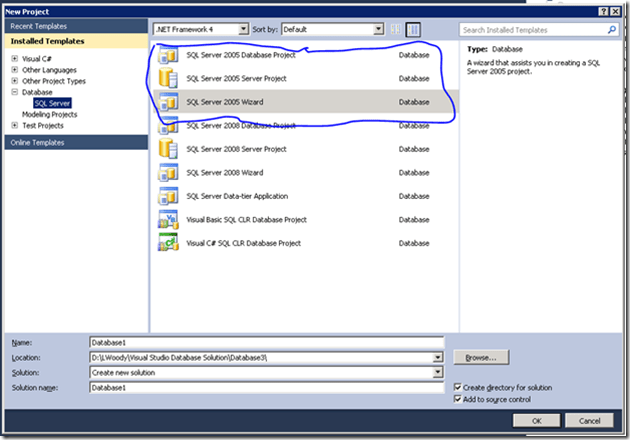
There are basically two types of projects available to you in Visual Studio 2010 (VS): Database and Server projects. You will see these options when you go to create a new project in VS.
image

Figure 1: Visual Studio Create Project Dialog Box

SQL Server 2005 projects are circled and separated from SQL Server 2008 projects. The “Wizard” project just gives you a step-by-step wizard to follow at the setup of a project; but is still either a server or database project. The difference between the two types of projects is the type of database objects they are intended to hold. Server projects hold logins, linked servers, asymmetric keys, and other objects that are configured at the SQL Server instance level. As you might guess, the database project holds objects that are defined at the database level such as tables, indexes, stored procedures, etc. Going forward I will mostly refer to database projects and almost everything that goes for them also goes for server projects.

Build and Deploy

One of the most important things to understand initially is how a database project is built and deployed. These are two separate processes and we will treat them as such.

Building a database project

When you build a database project a .dbschema file is produced. This file is an xml representation of every object in that database project. Here is a sample of what a table would look like:

<Element Type="ISql100Table" Name="[dbo].[CustomerCustomerDemo]">
  <Property Name="IsAnsiNullsOn" Value="True" />
  <Relationship Name="Columns">
    <Entry>
      <Element Type="ISql100SimpleColumn" Name="[dbo].[CustomerCustomerDemo].[CustomerID]">
        <Property Name="IsNullable" Value="False" />
        <Relationship Name="TypeSpecifier">
          <Entry>
            <Element Type="ISql90TypeSpecifier">
              <Property Name="Length" Value="5" />
              <Relationship Name="Type">
                <Entry>
                  <References ExternalSource="BuiltIns" Name="[nchar]" />
                </Entry>
              </Relationship>
            </Element>
          </Entry>
        </Relationship>
      </Element>
    </Entry>
    <Entry>
      <Element Type="ISql100SimpleColumn" Name="[dbo].[CustomerCustomerDemo].[CustomerTypeID]">
        <Property Name="IsNullable" Value="False" />
        <Relationship Name="TypeSpecifier">
          <Entry>
            <Element Type="ISql90TypeSpecifier">
              <Property Name="Length" Value="10" />
              <Relationship Name="Type">
                <Entry>
                  <References ExternalSource="BuiltIns" Name="[nchar]" />
                </Entry>
              </Relationship>
            </Element>
          </Entry>
        </Relationship>
      </Element>
    </Entry>
  </Relationship>
  <Relationship Name="Owner">
    <Entry>
      <References ExternalSource="BuiltIns" Name="[dbo]" />
    </Entry>
  </Relationship>
</Element>

From a visual perspective, this is what happens when building a database project:
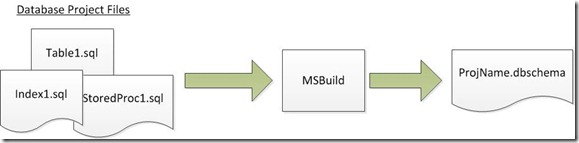
Figure2

Figure 2: Database Project Build

This is just an introduction and more detailed reference can be found on MSDN.

Deploying a Database Project

Deploying a database project is essentially taking the model of the database given by the .dbschema file from the build and comparing it with a target database. From that comparison, a T-SQL script will be generated that will alter the target database to be in synch with the database represented by the database project. A command line tool called VSDBCMD.exe is used to do the deployment. A reference for it can be found here (http://msdn.microsoft.com/en-us/library/dd193283.aspx).

Here again is a visual diagram of what happens during deployment.
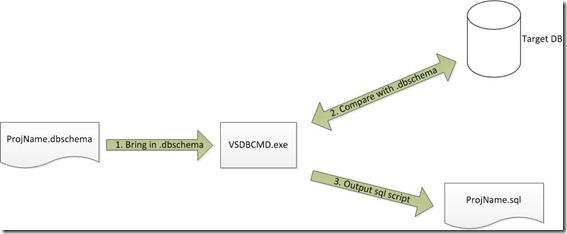
Figure3

Figure 3: Database Project Deployment Process

Parts of Database Project

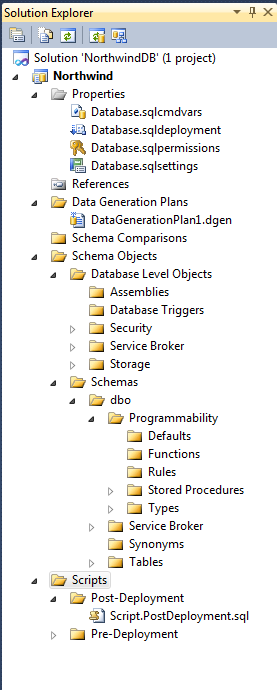
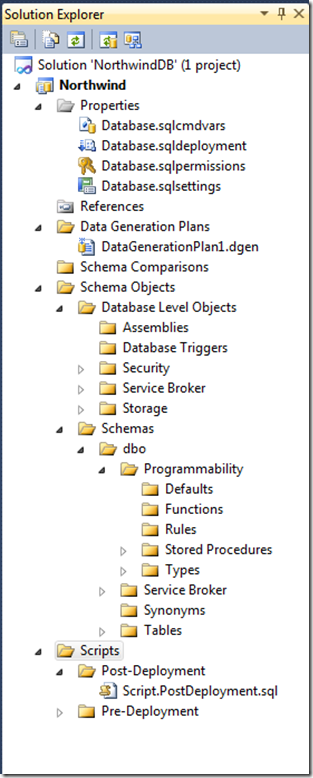
A database project is laid out the following way by Visual Studio.
image

Figure 4: VS Layout of Database Projects

Basically, there are project property files, references, data generation plans, schema comparisons, database objects (divided by schema), and manual scripts.

Database Object Files

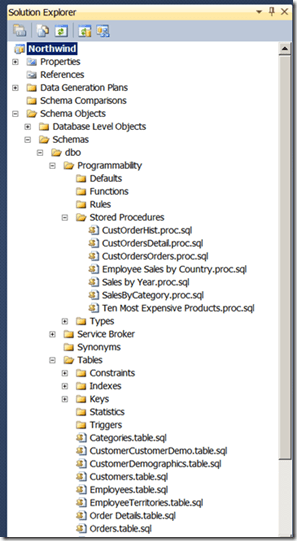
Database Object files are all the .sql files that create and maintain tables, stored procedures, indexes, etc. Below is a look on how they are organized by Visual Studio. I have not expanded every folder, but you should get a general sense of how .sql files are organized from this screenshot of solution explorer.
image

Figure 5: Visual Studio Database Object Files

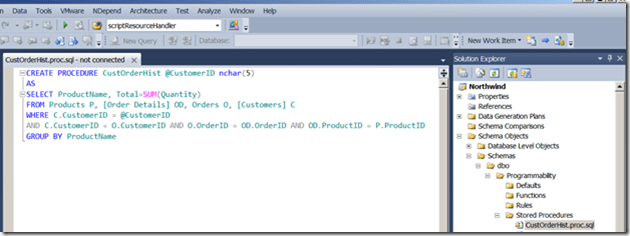
Most .sql files use the “CREATE” T-SQL keyword. For example, here is the script for a stored procedure:
image

Figure 6: .sql file in Visual Studio

Here is the script for an index:

CREATE NONCLUSTERED INDEX [CategoriesProducts]
    ON [dbo].[Products]([CategoryID] ASC) WITH (ALLOW_PAGE_LOCKS = ON, ALLOW_ROW_LOCKS = ON, PAD_INDEX = OFF, SORT_IN_TEMPDB = OFF, DROP_EXISTING = OFF, IGNORE_DUP_KEY = OFF, STATISTICS_NORECOMPUTE = OFF, ONLINE = OFF, MAXDOP = 0)
    ON [PRIMARY];

.dbproj File

This file defines the database project and instructs MSBUILD on how exactly to compile the database project. This is analogous to the .csproj file for a C# project. You also have the usual two configurations of builds out of box: debug and release. A sample of the file is given below:

<PropertyGroup Condition=" '$(Configuration)' == 'Debug' ">
    <OutputPath>.\sql\debug\</OutputPath>
    <BuildScriptName>$(MSBuildProjectName).sql</BuildScriptName>
    <TargetConnectionString>
    </TargetConnectionString>
    <TargetDatabase>
    </TargetDatabase>
    <TreatWarningsAsErrors>False</TreatWarningsAsErrors>
    <SuppressWarnings>
    </SuppressWarnings>
    <DeploymentConfigFile>Properties\Database.sqldeployment</DeploymentConfigFile>
    <SqlCommandVariablesFile>Properties\Database.sqlcmdvars</SqlCommandVariablesFile>
    <DeployToDatabase>False</DeployToDatabase>
  </PropertyGroup>

Database Property Files

These files set different properties in the database project, except for the .sqlpermissions file. This file is the place where database permissions are set rather than using a .sql script. You can multiple versions of these files to setup different scenarios for both build and deploy. Each file is xml, but is given a nice GUI by Visual Studio.

.sqlsettings File

This file contains database specific configuration settings, such as a backup policy and collation. All build configurations use the same .sqlsettings file and it is set in the following window.
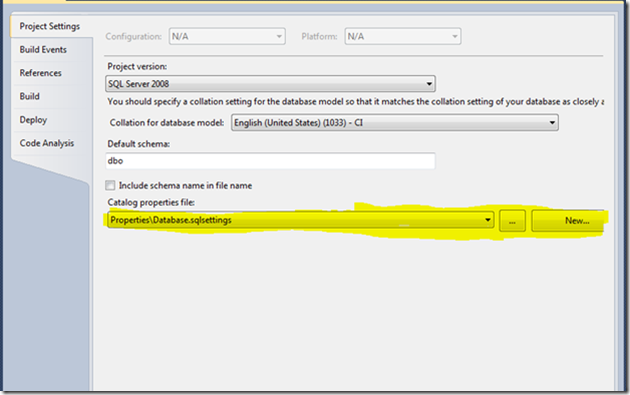
image

Figure 7: VS GUI for choosing which .sqlsettings file to use

You can get to this window by right-clicking on the project and clicking “Properties”.

Server projects do not have a .sqlsettings file.

http://msdn.microsoft.com/en-us/library/dd193289.aspx

http://msdn.microsoft.com/en-us/library/bb386162.aspx

For a complete listing of these options and their descriptions, go to http://msdn.microsoft.com/en-us/library/ms190249(SQL.90).aspx. Here is a subset of them below:

Option Description Default value
ANSI_NULLS When ON is specified, all comparisons to a null value evaluate to UNKNOWN.When OFF is specified, comparisons of non-UNICODE values to a null value evaluate to TRUE if both values are NULL. OFF
ANSI_WARNINGS When ON is specified, errors or warnings are issued when conditions such as divide-by-zero occur or null values appear in aggregate functions.When OFF is specified, no warnings are raised and null values are returned when conditions such as divide-by-zero occur. OFF
ARITHABORT When ON is specified, a query is ended when an overflow or divide-by-zero error occurs during query execution.When OFF is specified, a warning message is displayed when one of these errors occurs, but the query, batch, or transaction continues to process as if no error occurred. OFF
QUOTED_IDENTIFIER When ON is specified, double quotation marks can be used to enclose delimited identifiers.When OFF is specified, identifiers cannot be in quotation marks and must follow all Transact-SQL rules for identifiers. OFF
NUMERIC_ROUNDABORT When ON is specified, an error is generated when loss of precision occurs in an expression.When OFF is specified, losses of precision do not generate error messages and the result is rounded to the precision of the column or variable storing the result. OFF
RECURSIVE_TRIGGERS When ON is specified, recursive firing of AFTER triggers is allowed.When OFF is specified, only direct recursive firing of AFTER triggers is not allowed. OFF

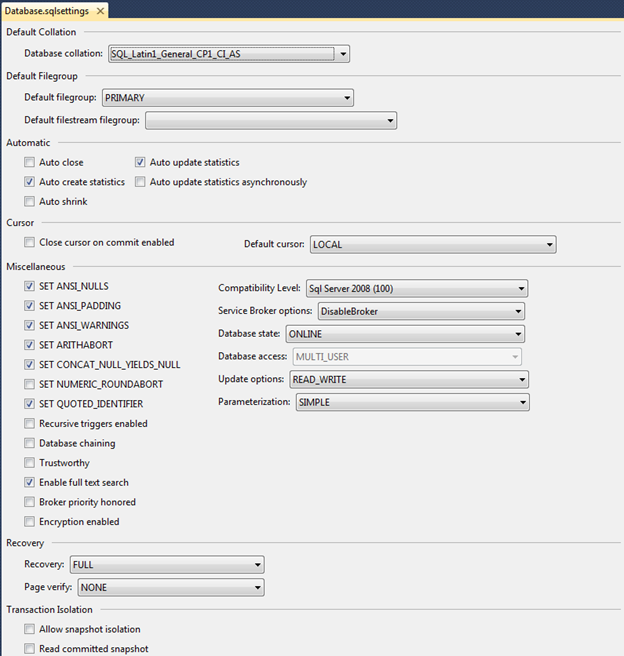
The .sqlsettings file looks like this when opened in Visual Studio:
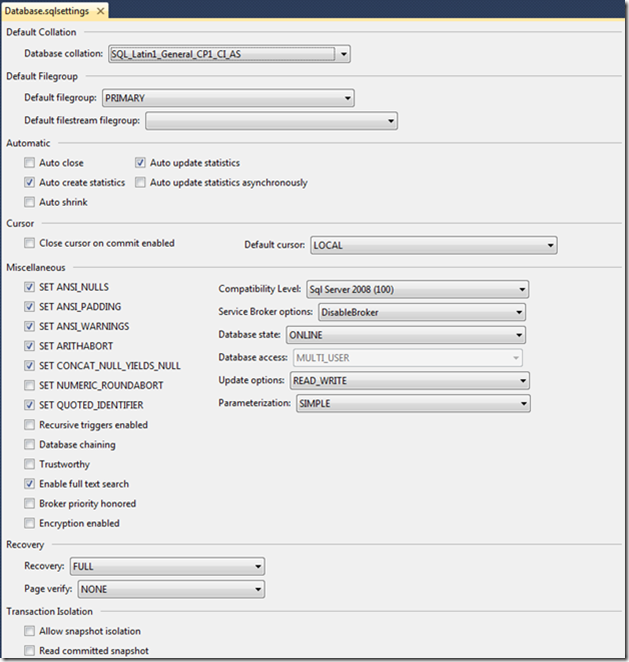
image

Figure 8: VS GUI for .sqlsettings file

It is of course an xml file. Here is an abbreviated sample:

<?xml version="1.0" encoding="utf-8"?>
<CatalogProperties xmlns="urn:Microsoft.VisualStudio.Data.Schema.Package.CatalogProperties">
  <Version>1.0</Version>
  <Properties>
    <AllowSnapshotIsolation>False</AllowSnapshotIsolation>
    <AnsiNullDefault>True</AnsiNullDefault>
    <AnsiNulls>True</AnsiNulls>
    <AnsiPadding>True</AnsiPadding>
    <AnsiWarnings>True</AnsiWarnings>
    <ArithAbort>True</ArithAbort>
    <AutoClose>False</AutoClose>
    <AutoCreateStatistics>True</AutoCreateStatistics>
    <AutoShrink>False</AutoShrink>
    <AutoUpdateStatistics>True</AutoUpdateStatistics>
    <AutoUpdateStatisticsAsynchronously>False</AutoUpdateStatisticsAsynchronously>
  </Properties>
</CatalogProperties>

.sqldeployment File

This file contains deployment specific settings such as database name and target connection string. You can have one of these for each build configuration. This is what it looks like in Visual Studio:
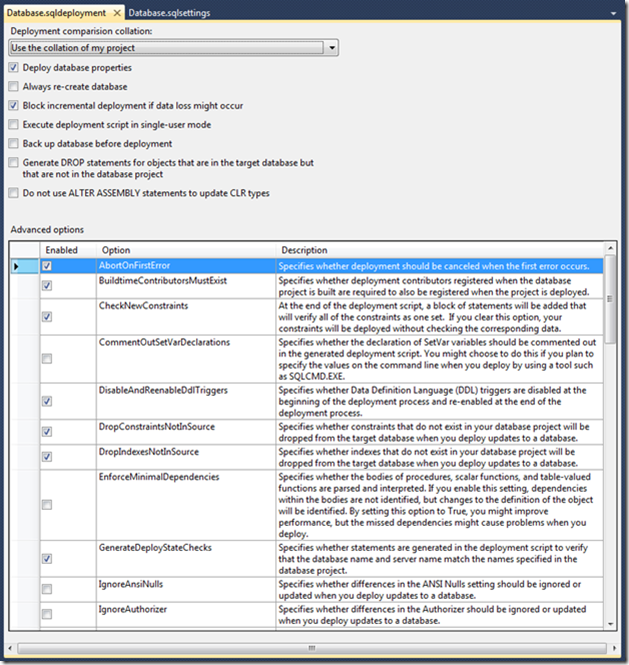
image

Figure 9: VS GUI for .sqldeployment file

Here is an example of the actual xml behind the VS GUI:

<?xml version="1.0" encoding="utf-8"?>
<DeploymentConfigurationSettings xmlns="urn:Microsoft.VisualStudio.Data.Schema.Package.DeploymentConfigurationSettings" xmlns:xsi="http://www.w3.org/2001/XMLSchema-instance">
  <Version>1.0</Version>
  <Properties>
    <AlwaysCreateNewDatabase>False</AlwaysCreateNewDatabase>
    <BlockIncrementalDeploymentIfDataLoss>True</BlockIncrementalDeploymentIfDataLoss>
    <DeployDatabaseProperties>True</DeployDatabaseProperties>
    <DeploymentCollationPreference>UseSourceModelCollation</DeploymentCollationPreference>
    <DoNotUseAlterAssemblyStatementsToUpdateCLRTypes>False</DoNotUseAlterAssemblyStatementsToUpdateCLRTypes>
    <GenerateDropsIfNotInProject>False</GenerateDropsIfNotInProject>
    <PerformDatabaseBackup>False</PerformDatabaseBackup>
    <SingleUserMode>False</SingleUserMode>
  </Properties>
</DeploymentConfigurationSettings>

.sqlcmdvars File

This file contains names and values for SQLCMD variables, which are used when you deploy a project. You may associate a different one with each build configuration. Initially the .sqlcmdvars file has three variables that aren’t set until deployment. The first variable is $(DatabaseName), and it contains the name of the target database to which you are deploying. The second variable is $(DefaultDataPath), and it contains the path in which the files for the database are stored on the target server. The third variable is $(DefaultLogPath), and it contains the path in which the log file for the database is stored on the target server.  The main use for this file currently is to replace the name of linked servers at deployment time.

.PreDeployment.sql and .PostDeployment.sql Files

These files are self-explanatory in that they are run before and after deployment. You can have only one of each of these files in a database project. If you would like to use more, you will need to use the :r option that is part of SQLCMD. More information can be found here:

http://msdn.microsoft.com/en-us/library/aa833281(VS.80).aspx

Hope you liked this intro and good luck!

New User Voice Site for TFS and Visual Studio!!!!


Microsoft just created a new site for suggesting new features for TFS and Visual Studio at:

http://visualstudio.uservoice.com/forums/121579-visual-studio

This is great and seems to be much better than the Connect site.  I’ve already voted for upgrading the usability in Microsoft Test Manager, centralizing permissioning, and so much more!!!!

http://visualstudio.uservoice.com/users/21614007-woody

Lovin’ it.

.vdproj Setup Projects and TFS Build 2010


So you’re using .vdproj setup projects are you?  And you want to automate them with TFS 2010?  Well, you’re in the right place, although I would recommend you start moving those setup projects to a msdeploy  solution.

First, to automate the building of .vdproj project, you’re going to need to write your own msbuild file because they are not in msbuild format and therefore TFS Build does not know what to do with them.  I found some good examples on the net on how to do this, but I updated mine a little for 2010.  Here it is:

<?xml version="1.0" encoding="utf-8"?>
<Project DefaultTargets="Build" xmlns="http://schemas.microsoft.com/developer/msbuild/2003" ToolsVersion="4.0">
  <Target Name="Build">
    <PropertyGroup>
            <DevEnv>$(ProgramFiles)\Microsoft Visual Studio 10.0\Common7\IDE\devenv.com</DevEnv>
            <SolutionFile>$(MSBuildProjectDirectory)\MySolution.sln</SolutionFile>
            <ProjectFile>$(MSBuildProjectDirectory)\MySetupProject\MySetup.vdproj</ProjectFile>
            <Configuration>Release</Configuration>
    </PropertyGroup>
    <Exec
          Command="&quot;$(DevEnv)&quot; &quot;$(SolutionFile)&quot; /Rebuild &quot;$(Configuration)&quot;
          /Project &quot;$(ProjectFile)&quot; /ProjectConfig &quot;$(Configuration)&quot; /Log"
          ContinueOnError="false"
         IgnoreExitCode="false"
         WorkingDirectory="$(MSBuildProjectDirectory)" />
  </Target>
</Project>

After you’ve done that save the msbuild file as, for example, AutomatedSetupBuild.proj and add it to source control at the same level as the solution file you intend to build.  Then select it when you are creating your build definition.

One last thing on drops.  If you intend to create a drop, there is a twist.  TFS Build usually overwrites the “OutputPath” property in msbuild files to the “Binaries” folder on the build agent at build time.  Since the “OutputPath” property does not apply here, you will need to overwrite it in the .vdproj file.  Simply open the .vdproj file in a text editor and find the word “Release”.  Change the “OutputFilename” to “..\\..\\..\\Binaries\\*.msi”.  My .vdproj file had an “8:” prefixing the path which I simply left.

You’re done now.  Enjoy!

TFS Rangers have shipped Build Customization Guide


Saturday morning, the TFS Rangers (a group I’m involved with) published the RTM release of Rangers Build Customization Guide on Codeplex!

Project Description

This Visual Studio ALM Ranger project has the primary goal of delivering scenario based and hands-on lab guidance for the customization and deployment of Team Foundation Build 2010 activities such as versioning, code signing, and branching.

What is in the downloads?

  • Guidancecontains scenario based practical guidance, frequently asked questions and quick reference posters
    • Selected PDF contains guidance and quick reference posters in PDF format only.
    • Complete contains guidance, quick reference posters and localization files in all available formats.
  • Hands-on Labs (HOL)includes:
    • HOL documents that provide walkthroughs of the technology, based on the guidance
    • HOL Package contains a HOL environment setup package allowing you to setup the HOL environment in your own environment
    • BRDLite Build Process Reference Template walk-through.
  • Samples contains sample build process templates used by the team as part of the guidance.
  • Videos which showcase the guidance in quick 5-10min videos.

The Epics included in the guidance are:

  • Practical guidance and tooling to simplify the customization of Team Foundation Build
  • Practical guidance to use Team Foundation Build process templates to automate build and non-build scenarios in Microsoft environments
  • Practical guidance to enable simple and flexible deployment of applications and their data stores
  • Practical guidance for Activities to empower developers and build engineers
  • Quality hands-on labs that complement the guidance and effectively guide the user through the features
  • Visualization of the guidance using quick reference posters

.Net 1.1, Visual Studio 2003, and TFS 2010


So, you have some old .Net 1.1 apps that you don’t want to upgrade, BUT you want to use TFS 2010 for your source control.  Well you are in for a treat! (kidding)

First, you’re condemned to using VS 2003, because VS 2005, 2008, and 2010 only deal with .Net 2.0 and higher.

Second, because of this, you’re condemned to using the TFS 2010 MSSCCI provider; which is a not very well documented, unsupported by MS free tool. 🙂 (Have fun)

This guy has a great post with screenshots to lead you through the gauntlet!

Third, heaven help you if you’re migrating your source from another source control provider like SourceSafe or PVCS.  You’ll need to unbind the code from the old source ccontrol provider and then re-bind it to TFS 2010.  A treachous course that shouldn’t be taken lightly.

But otherwise, have fun!

Upgrading from WSS 3.0 to SharePoint 2010 on TFS 2010


So, you installed TFS with the basic install and it just put WSS 3.0 on there by default.  No you want to go to SharePoint 2010!  Not so fast!  The install guide is not that helpful and can be right down misleading in this regard.  So, having just completed this ordeal in a shade under 10 hours (with MS support), let me give you my lessons learned.

  • You will have to do a database attach upgrade of SharePoint (in-place is not an option) with WSS.
  • Make sure to un-install WSS 3.0 AND un-install the TFS SharePoint extensions feature  BEFORE installing SharePoint
  • If you are unable to get TFS to recognize that you did indeed uninstall the SharePoint extensions, use this command: Tfsconfig setup /uinstall:sharepointextensions
  • If all else fails, you may have to manually install the TFS SharePoint extensions, which is really just a set of three SharePoint solutions.  Here are the commands to do so:

C:\Program Files\Common Files\Microsoft Shared\Web Server Extensions\12\bin\stsadm.exe -o addsolution -filename “c:\Program Files\Microsoft Team Foundation Server 2010\Tools\Templates\Microsoft.TeamFoundation.SharePoint.wsp”

C:\Program Files\Common Files\Microsoft Shared\Web Server Extensions\12\bin\stsadm.exe -o deploysolution -name Microsoft.TeamFoundation.SharePoint.wsp -local -force

C:\Program Files\Common Files\Microsoft Shared\Web Server Extensions\12\bin\stsadm.exe -o addsolution -filename “c:\Program Files\Microsoft Team Foundation Server 2010\Tools\Templates\TswaWebPartCollection.wsp”

C:\Program Files\Common Files\Microsoft Shared\Web Server Extensions\12\bin\stsadm.exe -o deploysolution -name TswaWebPartCollection.wsp -local -force -allcontenturls -allowgacdeployment

C:\Program Files\Common Files\Microsoft Shared\Web Server Extensions\12\bin\stsadm.exe -o addsolution -filename “c:\Program Files\Microsoft Team Foundation Server 2010\Tools\Templates\Microsoft.TeamFoundation.SharePoint.Dashboards.wsp”

C:\Program Files\Common Files\Microsoft Shared\Web Server Extensions\12\bin\stsadm.exe -o deploysolution -name Microsoft.TeamFoundation.SharePoint.Dashboards.wsp -local -force

IISRESET /noforce

  • Do not use “Claims” authentication for your SharePoint web application
  • Make sure the TFS Admin account is also put as a Site Collection admin

Otherwise, easy-squeezy, lemon-pleasy 😉

TFS Agile 5.0 Planning Worksheets


Want to get the planning worksheets outside of TFS?  Here they are:

Product Planning

Iteration Backlog

Follow these instructions from Aaron Bjork to use:

Product Planning Workbook

To bind the Product Planning workbook to your team project follow these steps:

  • Open the Product Planning workbook.
  • Place your cursor in cell A1 of the Product Backlog worksheet.
  • Switch to the Team ribbon and click New List.
  • Select your Team Project and click Connect.
  • From the New List dialog, select the Product Planning work item query.

Your Product Planning workbook is now connected to your team project and ready to use.

Iteration Backlog Workbook

To bind the Iteration Backlog workbook to your team project follow these steps:

  • Place your cursor in cell A1 of the Iteration Backlog worksheet.
  • Switch to the Team ribbon and click New List.
  • Select your Team Project and click Connect.
  • From the New List dialog, select one of the Iteration Backlog queries.  The query you select must be a Tree query and must contain a parent/child relationship between User Stories and Tasks.

image

  • Save the workbook locally.
  • Close the workbook and re-open it.
  • After re-opening, the workbook will attach itself to your Analysis Services server and set values for a series of document properties use by the burndown worksheet.
  • Save the workbook again.

Your Iteration Backlog workbook is now connected to your team project and ready to use.


MetaProperty is marked as secure error message in MSDeploy


So I was running this command on an IIS 6.0 box:

msdeploy verb:sync -source:webServer60 -dest:package=c:\package.zip

and kept getting this error:

Error: The property ‘value’ located at ‘/webServer60/metaKey[@path=’/LM/W3SVC’]/metaProperty’ is marked as secure. You must specify an encryption password to archive this property.

Since this was a production server setup by someone else, I thought that I had to get the password from them.  NOPE!!!  After an hour of scouring the web to see how even to set this password in IIS 6; a colleague pointed out that it needs the password to encrypt the metabase properties going into the package!!!!

So I could set any password!!! Just have to remember it when I go to deploy that package somewhere else.

Here’s to hoping you find this post before wasting an hour like me! 🙂


An updated Word version of the MSF for CMMI Process Improvement v5.0 Process Guidance


Hi Folks,

This has been a very popular download on the site.  I’m starting to do some more work around the CMMI template, so I thought I’d update the word version.  Much cleaner in the table of contents.  Only thing missing is some info on the dashboard reports, but stubs are there for each one.  Weighs in at 216 pages!  Enjoy!

MSF for CMMI Process Improvement v5 – Process Guidance