.vdproj Setup Projects and TFS Build 2010


So you’re using .vdproj setup projects are you?  And you want to automate them with TFS 2010?  Well, you’re in the right place, although I would recommend you start moving those setup projects to a msdeploy  solution.

First, to automate the building of .vdproj project, you’re going to need to write your own msbuild file because they are not in msbuild format and therefore TFS Build does not know what to do with them.  I found some good examples on the net on how to do this, but I updated mine a little for 2010.  Here it is:

<?xml version="1.0" encoding="utf-8"?>
<Project DefaultTargets="Build" xmlns="http://schemas.microsoft.com/developer/msbuild/2003" ToolsVersion="4.0">
  <Target Name="Build">
    <PropertyGroup>
            <DevEnv>$(ProgramFiles)\Microsoft Visual Studio 10.0\Common7\IDE\devenv.com</DevEnv>
            <SolutionFile>$(MSBuildProjectDirectory)\MySolution.sln</SolutionFile>
            <ProjectFile>$(MSBuildProjectDirectory)\MySetupProject\MySetup.vdproj</ProjectFile>
            <Configuration>Release</Configuration>
    </PropertyGroup>
    <Exec
          Command="&quot;$(DevEnv)&quot; &quot;$(SolutionFile)&quot; /Rebuild &quot;$(Configuration)&quot;
          /Project &quot;$(ProjectFile)&quot; /ProjectConfig &quot;$(Configuration)&quot; /Log"
          ContinueOnError="false"
         IgnoreExitCode="false"
         WorkingDirectory="$(MSBuildProjectDirectory)" />
  </Target>
</Project>

After you’ve done that save the msbuild file as, for example, AutomatedSetupBuild.proj and add it to source control at the same level as the solution file you intend to build.  Then select it when you are creating your build definition.

One last thing on drops.  If you intend to create a drop, there is a twist.  TFS Build usually overwrites the “OutputPath” property in msbuild files to the “Binaries” folder on the build agent at build time.  Since the “OutputPath” property does not apply here, you will need to overwrite it in the .vdproj file.  Simply open the .vdproj file in a text editor and find the word “Release”.  Change the “OutputFilename” to “..\\..\\..\\Binaries\\*.msi”.  My .vdproj file had an “8:” prefixing the path which I simply left.

You’re done now.  Enjoy!

TFS Rangers have shipped Build Customization Guide


Saturday morning, the TFS Rangers (a group I’m involved with) published the RTM release of Rangers Build Customization Guide on Codeplex!

Project Description

This Visual Studio ALM Ranger project has the primary goal of delivering scenario based and hands-on lab guidance for the customization and deployment of Team Foundation Build 2010 activities such as versioning, code signing, and branching.

What is in the downloads?

  • Guidancecontains scenario based practical guidance, frequently asked questions and quick reference posters
    • Selected PDF contains guidance and quick reference posters in PDF format only.
    • Complete contains guidance, quick reference posters and localization files in all available formats.
  • Hands-on Labs (HOL)includes:
    • HOL documents that provide walkthroughs of the technology, based on the guidance
    • HOL Package contains a HOL environment setup package allowing you to setup the HOL environment in your own environment
    • BRDLite Build Process Reference Template walk-through.
  • Samples contains sample build process templates used by the team as part of the guidance.
  • Videos which showcase the guidance in quick 5-10min videos.

The Epics included in the guidance are:

  • Practical guidance and tooling to simplify the customization of Team Foundation Build
  • Practical guidance to use Team Foundation Build process templates to automate build and non-build scenarios in Microsoft environments
  • Practical guidance to enable simple and flexible deployment of applications and their data stores
  • Practical guidance for Activities to empower developers and build engineers
  • Quality hands-on labs that complement the guidance and effectively guide the user through the features
  • Visualization of the guidance using quick reference posters

.Net 1.1, Visual Studio 2003, and TFS 2010


So, you have some old .Net 1.1 apps that you don’t want to upgrade, BUT you want to use TFS 2010 for your source control.  Well you are in for a treat! (kidding)

First, you’re condemned to using VS 2003, because VS 2005, 2008, and 2010 only deal with .Net 2.0 and higher.

Second, because of this, you’re condemned to using the TFS 2010 MSSCCI provider; which is a not very well documented, unsupported by MS free tool. 🙂 (Have fun)

This guy has a great post with screenshots to lead you through the gauntlet!

Third, heaven help you if you’re migrating your source from another source control provider like SourceSafe or PVCS.  You’ll need to unbind the code from the old source ccontrol provider and then re-bind it to TFS 2010.  A treachous course that shouldn’t be taken lightly.

But otherwise, have fun!

Upgrading from WSS 3.0 to SharePoint 2010 on TFS 2010


So, you installed TFS with the basic install and it just put WSS 3.0 on there by default.  No you want to go to SharePoint 2010!  Not so fast!  The install guide is not that helpful and can be right down misleading in this regard.  So, having just completed this ordeal in a shade under 10 hours (with MS support), let me give you my lessons learned.

  • You will have to do a database attach upgrade of SharePoint (in-place is not an option) with WSS.
  • Make sure to un-install WSS 3.0 AND un-install the TFS SharePoint extensions feature  BEFORE installing SharePoint
  • If you are unable to get TFS to recognize that you did indeed uninstall the SharePoint extensions, use this command: Tfsconfig setup /uinstall:sharepointextensions
  • If all else fails, you may have to manually install the TFS SharePoint extensions, which is really just a set of three SharePoint solutions.  Here are the commands to do so:

C:\Program Files\Common Files\Microsoft Shared\Web Server Extensions\12\bin\stsadm.exe -o addsolution -filename “c:\Program Files\Microsoft Team Foundation Server 2010\Tools\Templates\Microsoft.TeamFoundation.SharePoint.wsp”

C:\Program Files\Common Files\Microsoft Shared\Web Server Extensions\12\bin\stsadm.exe -o deploysolution -name Microsoft.TeamFoundation.SharePoint.wsp -local -force

C:\Program Files\Common Files\Microsoft Shared\Web Server Extensions\12\bin\stsadm.exe -o addsolution -filename “c:\Program Files\Microsoft Team Foundation Server 2010\Tools\Templates\TswaWebPartCollection.wsp”

C:\Program Files\Common Files\Microsoft Shared\Web Server Extensions\12\bin\stsadm.exe -o deploysolution -name TswaWebPartCollection.wsp -local -force -allcontenturls -allowgacdeployment

C:\Program Files\Common Files\Microsoft Shared\Web Server Extensions\12\bin\stsadm.exe -o addsolution -filename “c:\Program Files\Microsoft Team Foundation Server 2010\Tools\Templates\Microsoft.TeamFoundation.SharePoint.Dashboards.wsp”

C:\Program Files\Common Files\Microsoft Shared\Web Server Extensions\12\bin\stsadm.exe -o deploysolution -name Microsoft.TeamFoundation.SharePoint.Dashboards.wsp -local -force

IISRESET /noforce

  • Do not use “Claims” authentication for your SharePoint web application
  • Make sure the TFS Admin account is also put as a Site Collection admin

Otherwise, easy-squeezy, lemon-pleasy 😉

TFS Agile 5.0 Planning Worksheets


Want to get the planning worksheets outside of TFS?  Here they are:

Product Planning

Iteration Backlog

Follow these instructions from Aaron Bjork to use:

Product Planning Workbook

To bind the Product Planning workbook to your team project follow these steps:

  • Open the Product Planning workbook.
  • Place your cursor in cell A1 of the Product Backlog worksheet.
  • Switch to the Team ribbon and click New List.
  • Select your Team Project and click Connect.
  • From the New List dialog, select the Product Planning work item query.

Your Product Planning workbook is now connected to your team project and ready to use.

Iteration Backlog Workbook

To bind the Iteration Backlog workbook to your team project follow these steps:

  • Place your cursor in cell A1 of the Iteration Backlog worksheet.
  • Switch to the Team ribbon and click New List.
  • Select your Team Project and click Connect.
  • From the New List dialog, select one of the Iteration Backlog queries.  The query you select must be a Tree query and must contain a parent/child relationship between User Stories and Tasks.

image

  • Save the workbook locally.
  • Close the workbook and re-open it.
  • After re-opening, the workbook will attach itself to your Analysis Services server and set values for a series of document properties use by the burndown worksheet.
  • Save the workbook again.

Your Iteration Backlog workbook is now connected to your team project and ready to use.


An updated Word version of the MSF for CMMI Process Improvement v5.0 Process Guidance


Hi Folks,

This has been a very popular download on the site.  I’m starting to do some more work around the CMMI template, so I thought I’d update the word version.  Much cleaner in the table of contents.  Only thing missing is some info on the dashboard reports, but stubs are there for each one.  Weighs in at 216 pages!  Enjoy!

MSF for CMMI Process Improvement v5 – Process Guidance

Deconstructing the TFS 2010 Default Build Template Part 1: Get the Build


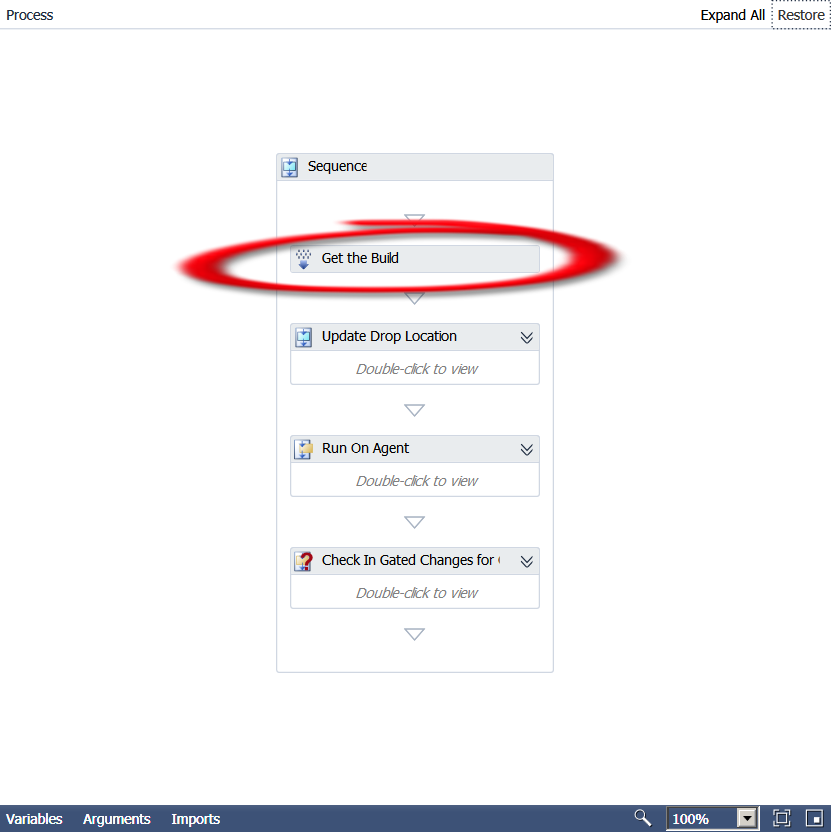
The very first activity in the Default Template is named “Get the Build” and is of type Microsoft.TeamFoundation.Build.Workflow.Activities.GetBuildDetail .

Now unfortunately, Microsoft does not provide any documentation for the above namespace.  Sooo, it’s time to break out .Net Reflector!!  This is a great tool that allows you to basically get the code or reverse engineer compiled assemblies.  So we put the Microsoft.TeamFoundation.Build.Workflow.dll assembly (can be found at C:\Program Files (x86)\Microsoft Visual Studio 10.0\Common7\IDE\PrivateAssemblies) in the tool and here’s what we get:

public sealed class GetBuildDetail : CodeActivity<IBuildDetail>
{
    // Methods
    public GetBuildDetail();
    protected override IBuildDetail Execute(CodeActivityContext context);
}

Interesting… so we know that the Execute method is the one run by the activity and it apparently
returns a IBuildDetail interface.  Going to the interface, we find that the only derived type is BuildDetail.

Okay, now we’re getting somewhere.  I can tell you from already going all the way through the Default template workflow that the BuildDetail class is very important and used in a lot of other activities.  It is basically a container for a whole lot of properties.  Here is a list of those properties, so get out your pencils!

public IBuildController BuildController { get; internal set; }

public Uri BuildControllerUri { get; internal set; }

public IBuildDefinition BuildDefinition { get; internal set; }

public Uri BuildDefinitionUri { get; internal set; }

public bool BuildFinished { get; }

public string BuildNumber { get; set; }

public IBuildServer BuildServer { get; set; }

public BuildPhaseStatus CompilationStatus { get; set; }

public string ConfigurationFolderPath { get; }

public string DropLocation { get; set; }

public string DropLocationRoot { get; }

public DateTime FinishTime { get; }

public IBuildInformation Information { get; private set; }

public bool IsDeleted { get; }

public bool KeepForever { get; set; }

public string LabelName { get; set; }

public string LastChangedBy { get; }

public DateTime LastChangedOn { get; }

public string LogLocation { get; set; }

public string ProcessParameters { get; }

public string Quality { get; set; }

public BuildReason Reason { get; }

public string RequestedBy { get; }

public string RequestedFor { get; }

public string ShelvesetName { get; }

public string SourceGetVersion { get; set; }

public DateTime StartTime { get; }

public BuildStatus Status { get; set; }

public string TeamProject { get; }

public BuildPhaseStatus TestStatus { get; set; }

public Uri Uri { get; }

internal VersionControlServer VersionControl { get; }

So, not only are these properties used all over the place, you can use them too!  Want to know if the build succeeded?

Put in a If activity and test for

BuildDetail.CompilationStatus = Microsoft.TeamFoundation.Build.Client.BuildPhaseStatus.Succeeded

See how learning the Default template leads you to customization mastery!?!  Now go use your new found knowledge and create your own cool customizations!!

Deconstructing the TFS 2010 Default Build Template


When you create a new team project in Team Foundation Server 2010, there is one directory created automatically in the team project’s home in source control: BuildProcessTemplates. In that directory there are 2 – 3 Windows Workflow xaml files depending on if you have Lab Management installed or not. The one that is most used and the one I will concentrate on in the next series of posts is DefaultTemplate.xaml.  If you want to really customize your builds, you need to know the Default Template inside out.