Types of Projects
There are basically two types of projects available to you in Visual Studio 2010 (VS): Database and Server projects. You will see these options when you go to create a new project in VS.
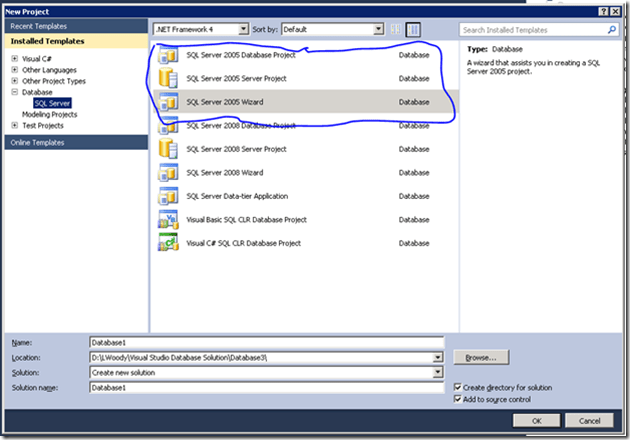
Figure 1: Visual Studio Create Project Dialog Box
SQL Server 2005 projects are circled and separated from SQL Server 2008 projects. The “Wizard” project just gives you a step-by-step wizard to follow at the setup of a project; but is still either a server or database project. The difference between the two types of projects is the type of database objects they are intended to hold. Server projects hold logins, linked servers, asymmetric keys, and other objects that are configured at the SQL Server instance level. As you might guess, the database project holds objects that are defined at the database level such as tables, indexes, stored procedures, etc. Going forward I will mostly refer to database projects and almost everything that goes for them also goes for server projects.
Build and Deploy
One of the most important things to understand initially is how a database project is built and deployed. These are two separate processes and we will treat them as such.
Building a database project
When you build a database project a .dbschema file is produced. This file is an xml representation of every object in that database project. Here is a sample of what a table would look like:
<Element Type="ISql100Table" Name="[dbo].[CustomerCustomerDemo]">
  <Property Name="IsAnsiNullsOn" Value="True" />
  <Relationship Name="Columns">
    <Entry>
      <Element Type="ISql100SimpleColumn" Name="[dbo].[CustomerCustomerDemo].[CustomerID]">
        <Property Name="IsNullable" Value="False" />
        <Relationship Name="TypeSpecifier">
          <Entry>
            <Element Type="ISql90TypeSpecifier">
              <Property Name="Length" Value="5" />
              <Relationship Name="Type">
                <Entry>
                  <References ExternalSource="BuiltIns" Name="[nchar]" />
                </Entry>
              </Relationship>
            </Element>
          </Entry>
        </Relationship>
      </Element>
    </Entry>
    <Entry>
      <Element Type="ISql100SimpleColumn" Name="[dbo].[CustomerCustomerDemo].[CustomerTypeID]">
        <Property Name="IsNullable" Value="False" />
        <Relationship Name="TypeSpecifier">
          <Entry>
            <Element Type="ISql90TypeSpecifier">
              <Property Name="Length" Value="10" />
              <Relationship Name="Type">
                <Entry>
                  <References ExternalSource="BuiltIns" Name="[nchar]" />
                </Entry>
              </Relationship>
            </Element>
          </Entry>
        </Relationship>
      </Element>
    </Entry>
  </Relationship>
  <Relationship Name="Owner">
    <Entry>
      <References ExternalSource="BuiltIns" Name="[dbo]" />
    </Entry>
  </Relationship>
</Element>
From a visual perspective, this is what happens when building a database project:
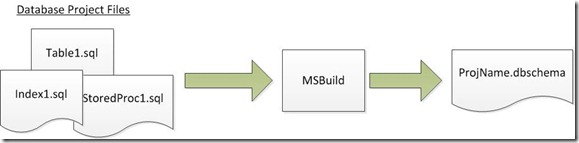
Figure 2: Database Project Build
This is just an introduction and more detailed reference can be found on MSDN.
Deploying a Database Project
Deploying a database project is essentially taking the model of the database given by the .dbschema file from the build and comparing it with a target database. From that comparison, a T-SQL script will be generated that will alter the target database to be in synch with the database represented by the database project. A command line tool called VSDBCMD.exe is used to do the deployment. A reference for it can be found here (http://msdn.microsoft.com/en-us/library/dd193283.aspx).
Here again is a visual diagram of what happens during deployment.
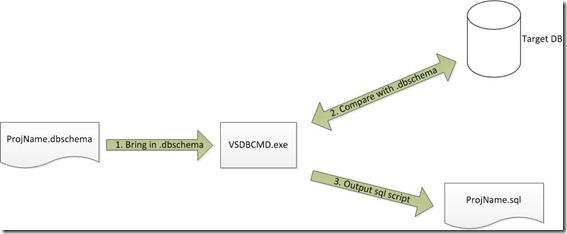
Figure 3: Database Project Deployment Process
Parts of Database Project
A database project is laid out the following way by Visual Studio.
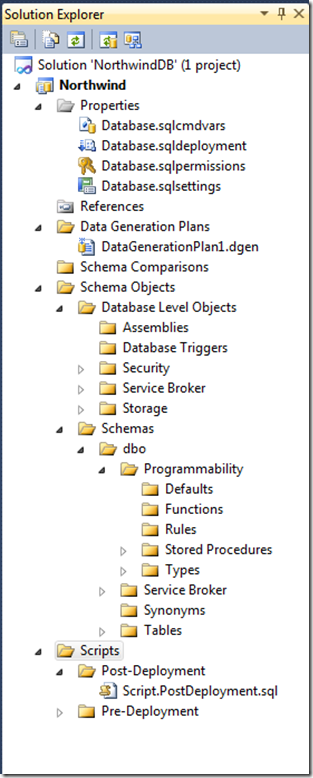
Figure 4: VS Layout of Database Projects
Basically, there are project property files, references, data generation plans, schema comparisons, database objects (divided by schema), and manual scripts.
Database Object Files
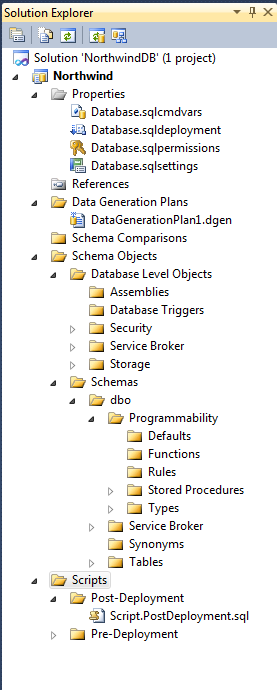
Database Object files are all the .sql files that create and maintain tables, stored procedures, indexes, etc. Below is a look on how they are organized by Visual Studio. I have not expanded every folder, but you should get a general sense of how .sql files are organized from this screenshot of solution explorer.
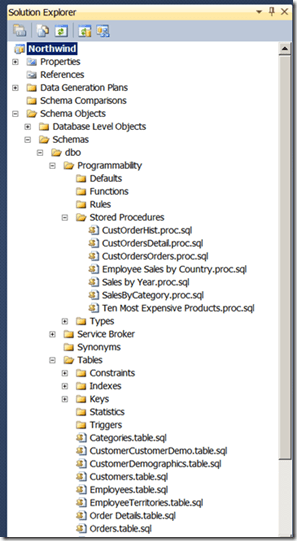
Figure 5: Visual Studio Database Object Files
Most .sql files use the “CREATE” T-SQL keyword. For example, here is the script for a stored procedure:
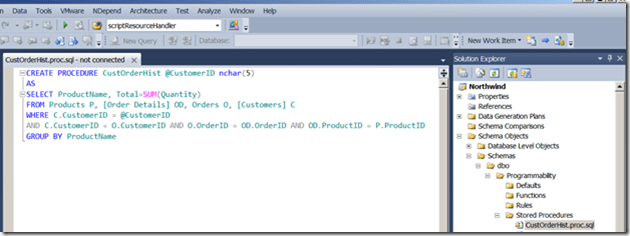
Figure 6: .sql file in Visual Studio
Here is the script for an index:
CREATE NONCLUSTERED INDEX [CategoriesProducts]
    ON [dbo].[Products]([CategoryID] ASC) WITH (ALLOW_PAGE_LOCKS = ON, ALLOW_ROW_LOCKS = ON, PAD_INDEX = OFF, SORT_IN_TEMPDB = OFF, DROP_EXISTING = OFF, IGNORE_DUP_KEY = OFF, STATISTICS_NORECOMPUTE = OFF, ONLINE = OFF, MAXDOP = 0)
    ON [PRIMARY];
.dbproj File
This file defines the database project and instructs MSBUILD on how exactly to compile the database project. This is analogous to the .csproj file for a C# project. You also have the usual two configurations of builds out of box: debug and release. A sample of the file is given below:
<PropertyGroup Condition=" '$(Configuration)' == 'Debug' ">
    <OutputPath>.\sql\debug\</OutputPath>
    <BuildScriptName>$(MSBuildProjectName).sql</BuildScriptName>
    <TargetConnectionString>
    </TargetConnectionString>
    <TargetDatabase>
    </TargetDatabase>
    <TreatWarningsAsErrors>False</TreatWarningsAsErrors>
    <SuppressWarnings>
    </SuppressWarnings>
    <DeploymentConfigFile>Properties\Database.sqldeployment</DeploymentConfigFile>
    <SqlCommandVariablesFile>Properties\Database.sqlcmdvars</SqlCommandVariablesFile>
    <DeployToDatabase>False</DeployToDatabase>
  </PropertyGroup>
Database Property Files
These files set different properties in the database project, except for the .sqlpermissions file. This file is the place where database permissions are set rather than using a .sql script. You can multiple versions of these files to setup different scenarios for both build and deploy. Each file is xml, but is given a nice GUI by Visual Studio.
.sqlsettings File
This file contains database specific configuration settings, such as a backup policy and collation. All build configurations use the same .sqlsettings file and it is set in the following window.
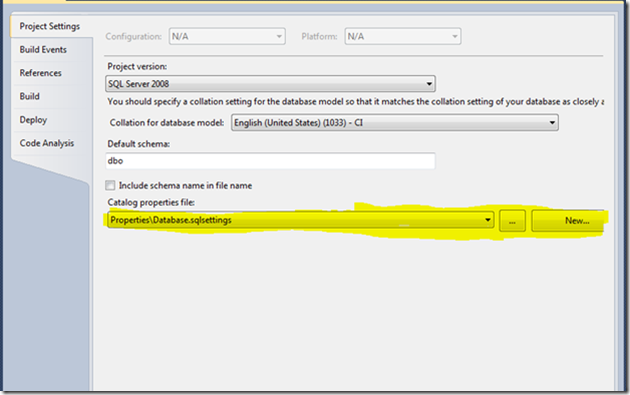
Figure 7: VS GUI for choosing which .sqlsettings file to use
You can get to this window by right-clicking on the project and clicking “Properties”.
Server projects do not have a .sqlsettings file.
http://msdn.microsoft.com/en-us/library/dd193289.aspx
http://msdn.microsoft.com/en-us/library/bb386162.aspx
For a complete listing of these options and their descriptions, go to http://msdn.microsoft.com/en-us/library/ms190249(SQL.90).aspx. Here is a subset of them below:
| Option |
Description |
Default value |
| ANSI_NULLS |
When ON is specified, all comparisons to a null value evaluate to UNKNOWN.When OFF is specified, comparisons of non-UNICODE values to a null value evaluate to TRUE if both values are NULL. |
OFF |
| ANSI_WARNINGS |
When ON is specified, errors or warnings are issued when conditions such as divide-by-zero occur or null values appear in aggregate functions.When OFF is specified, no warnings are raised and null values are returned when conditions such as divide-by-zero occur. |
OFF |
| ARITHABORT |
When ON is specified, a query is ended when an overflow or divide-by-zero error occurs during query execution.When OFF is specified, a warning message is displayed when one of these errors occurs, but the query, batch, or transaction continues to process as if no error occurred. |
OFF |
| QUOTED_IDENTIFIER |
When ON is specified, double quotation marks can be used to enclose delimited identifiers.When OFF is specified, identifiers cannot be in quotation marks and must follow all Transact-SQL rules for identifiers. |
OFF |
| NUMERIC_ROUNDABORT |
When ON is specified, an error is generated when loss of precision occurs in an expression.When OFF is specified, losses of precision do not generate error messages and the result is rounded to the precision of the column or variable storing the result. |
OFF |
| RECURSIVE_TRIGGERS |
When ON is specified, recursive firing of AFTER triggers is allowed.When OFF is specified, only direct recursive firing of AFTER triggers is not allowed. |
OFF |
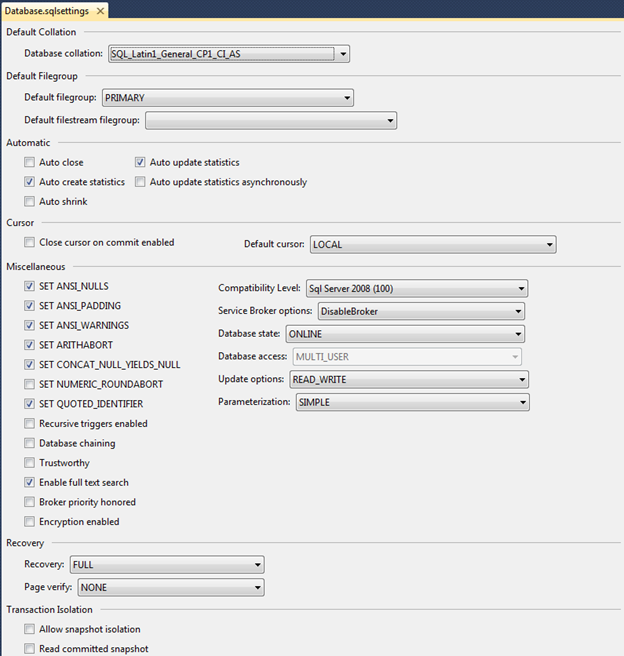
The .sqlsettings file looks like this when opened in Visual Studio:
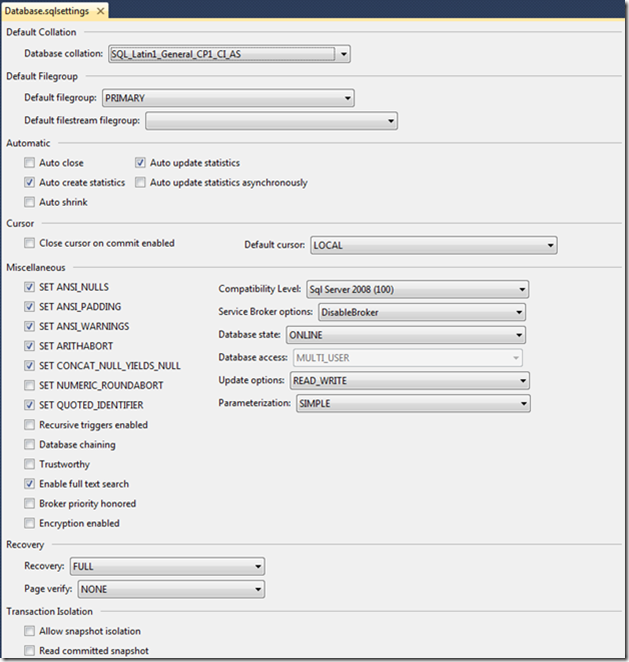
Figure 8: VS GUI for .sqlsettings file
It is of course an xml file. Here is an abbreviated sample:
<?xml version="1.0" encoding="utf-8"?>
<CatalogProperties xmlns="urn:Microsoft.VisualStudio.Data.Schema.Package.CatalogProperties">
  <Version>1.0</Version>
  <Properties>
    <AllowSnapshotIsolation>False</AllowSnapshotIsolation>
    <AnsiNullDefault>True</AnsiNullDefault>
    <AnsiNulls>True</AnsiNulls>
    <AnsiPadding>True</AnsiPadding>
    <AnsiWarnings>True</AnsiWarnings>
    <ArithAbort>True</ArithAbort>
    <AutoClose>False</AutoClose>
    <AutoCreateStatistics>True</AutoCreateStatistics>
    <AutoShrink>False</AutoShrink>
    <AutoUpdateStatistics>True</AutoUpdateStatistics>
    <AutoUpdateStatisticsAsynchronously>False</AutoUpdateStatisticsAsynchronously>
  </Properties>
</CatalogProperties>
.sqldeployment File
This file contains deployment specific settings such as database name and target connection string. You can have one of these for each build configuration. This is what it looks like in Visual Studio:
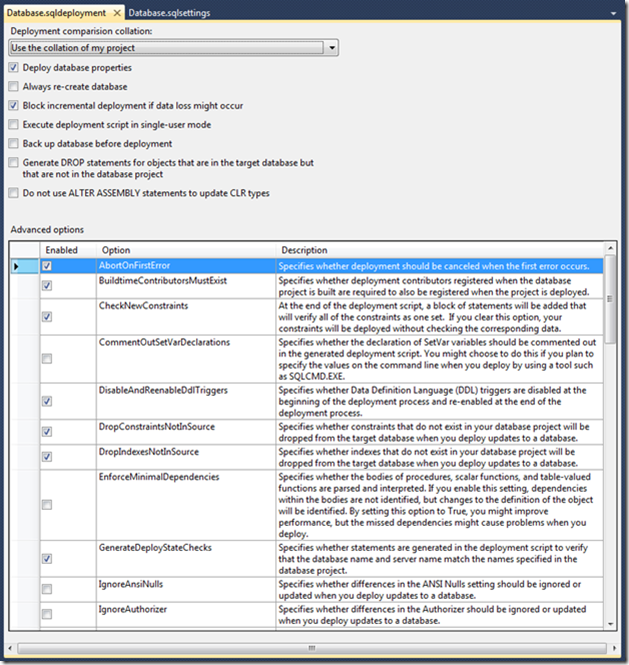
Figure 9: VS GUI for .sqldeployment file
Here is an example of the actual xml behind the VS GUI:
<?xml version="1.0" encoding="utf-8"?>
<DeploymentConfigurationSettings xmlns="urn:Microsoft.VisualStudio.Data.Schema.Package.DeploymentConfigurationSettings" xmlns:xsi="http://www.w3.org/2001/XMLSchema-instance">
  <Version>1.0</Version>
  <Properties>
    <AlwaysCreateNewDatabase>False</AlwaysCreateNewDatabase>
    <BlockIncrementalDeploymentIfDataLoss>True</BlockIncrementalDeploymentIfDataLoss>
    <DeployDatabaseProperties>True</DeployDatabaseProperties>
    <DeploymentCollationPreference>UseSourceModelCollation</DeploymentCollationPreference>
    <DoNotUseAlterAssemblyStatementsToUpdateCLRTypes>False</DoNotUseAlterAssemblyStatementsToUpdateCLRTypes>
    <GenerateDropsIfNotInProject>False</GenerateDropsIfNotInProject>
    <PerformDatabaseBackup>False</PerformDatabaseBackup>
    <SingleUserMode>False</SingleUserMode>
  </Properties>
</DeploymentConfigurationSettings>
.sqlcmdvars File
This file contains names and values for SQLCMD variables, which are used when you deploy a project. You may associate a different one with each build configuration. Initially the .sqlcmdvars file has three variables that aren’t set until deployment. The first variable is $(DatabaseName), and it contains the name of the target database to which you are deploying. The second variable is $(DefaultDataPath), and it contains the path in which the files for the database are stored on the target server. The third variable is $(DefaultLogPath), and it contains the path in which the log file for the database is stored on the target server. The main use for this file currently is to replace the name of linked servers at deployment time.
.PreDeployment.sql and .PostDeployment.sql Files
These files are self-explanatory in that they are run before and after deployment. You can have only one of each of these files in a database project. If you would like to use more, you will need to use the :r option that is part of SQLCMD. More information can be found here:
http://msdn.microsoft.com/en-us/library/aa833281(VS.80).aspx
Hope you liked this intro and good luck!






 Woody Press