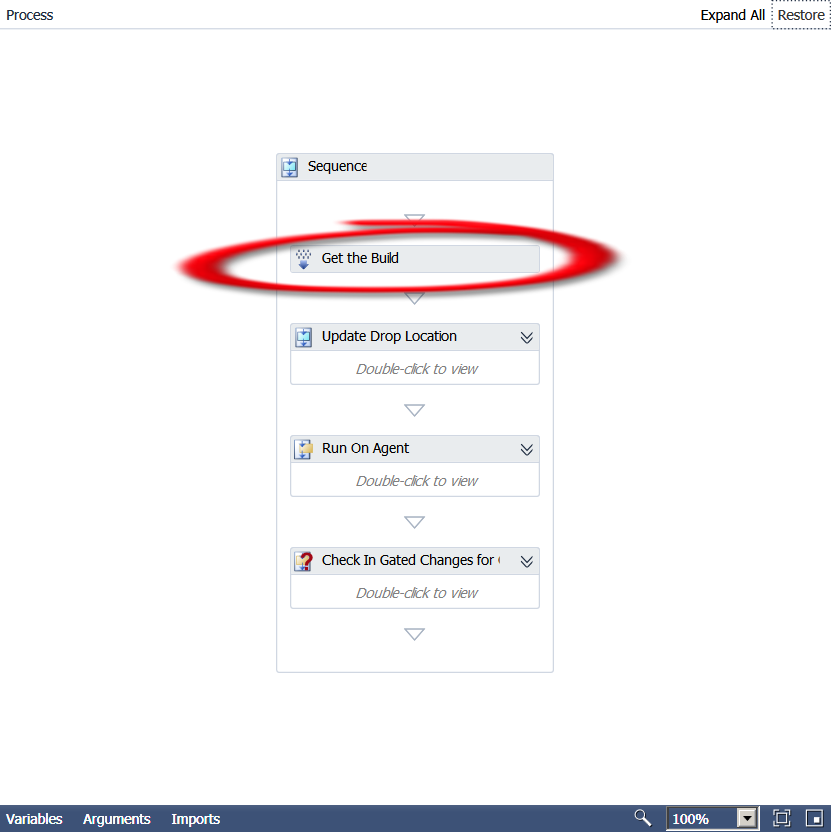
The very first activity in the Default Template is named “Get the Build” and is of type Microsoft.TeamFoundation.Build.Workflow.Activities.GetBuildDetail .

Now unfortunately, Microsoft does not provide any documentation for the above namespace. Sooo, it’s time to break out .Net Reflector!! This is a great tool that allows you to basically get the code or reverse engineer compiled assemblies. So we put the Microsoft.TeamFoundation.Build.Workflow.dll assembly (can be found at C:\Program Files (x86)\Microsoft Visual Studio 10.0\Common7\IDE\PrivateAssemblies) in the tool and here’s what we get:
public sealed class GetBuildDetail : CodeActivity<IBuildDetail>
{
    // Methods
    public GetBuildDetail();
    protected override IBuildDetail Execute(CodeActivityContext context);
}
Interesting… so we know that the Execute method is the one run by the activity and it apparently
returns a IBuildDetail interface. Going to the interface, we find that the only derived type is BuildDetail.
Okay, now we’re getting somewhere. I can tell you from already going all the way through the Default template workflow that the BuildDetail class is very important and used in a lot of other activities. It is basically a container for a whole lot of properties. Here is a list of those properties, so get out your pencils!
public IBuildController BuildController { get; internal set; }
public Uri BuildControllerUri { get; internal set; }
public IBuildDefinition BuildDefinition { get; internal set; }
public Uri BuildDefinitionUri { get; internal set; }
public bool BuildFinished { get; }
public string BuildNumber { get; set; }
public IBuildServer BuildServer { get; set; }
public BuildPhaseStatus CompilationStatus { get; set; }
public string ConfigurationFolderPath { get; }
public string DropLocation { get; set; }
public string DropLocationRoot { get; }
public DateTime FinishTime { get; }
public IBuildInformation Information { get; private set; }
public bool IsDeleted { get; }
public bool KeepForever { get; set; }
public string LabelName { get; set; }
public string LastChangedBy { get; }
public DateTime LastChangedOn { get; }
public string LogLocation { get; set; }
public string ProcessParameters { get; }
public string Quality { get; set; }
public BuildReason Reason { get; }
public string RequestedBy { get; }
public string RequestedFor { get; }
public string ShelvesetName { get; }
public string SourceGetVersion { get; set; }
public DateTime StartTime { get; }
public BuildStatus Status { get; set; }
public string TeamProject { get; }
public BuildPhaseStatus TestStatus { get; set; }
public Uri Uri { get; }
internal VersionControlServer VersionControl { get; }
So, not only are these properties used all over the place, you can use them too! Want to know if the build succeeded?
Put in a If activity and test for
BuildDetail.CompilationStatus = Microsoft.TeamFoundation.Build.Client.BuildPhaseStatus.Succeeded
See how learning the Default template leads you to customization mastery!?! Now go use your new found knowledge and create your own cool customizations!!


 Woody Press